✨Welcome to Austell Cowork
‼️ Most Important Info & Rules
-
Members-Only Access
The facility is locked 24/7. Do not let in anyone without a valid key fob or means of verification – for your safety and that of our community. -
Respect Our Zones
• Book conference tables and phone booths in advance.
• Take Zoom & phone calls via headphones or headset – speakerphone calls and loud ringers are not allowed. -
Don’t Tamper with Equipment
Do not adjust climate controls, the SONOS system, move furniture, unplug the coffee maker or fiddle with anything that isn’t yours. -
Trash & Tidiness
Don’t overfill trash cans. If cans are full, notify the team. Maintaining a clean space benefits everyone.
Ultimately, we’re building a productive environment—thank you for doing your part!
📍Location
Address & Map
- Address: 2760 Broad Street, Austell, GA 30106
- Nearby Landmarks: Downtown Austell, Historic Broad Street
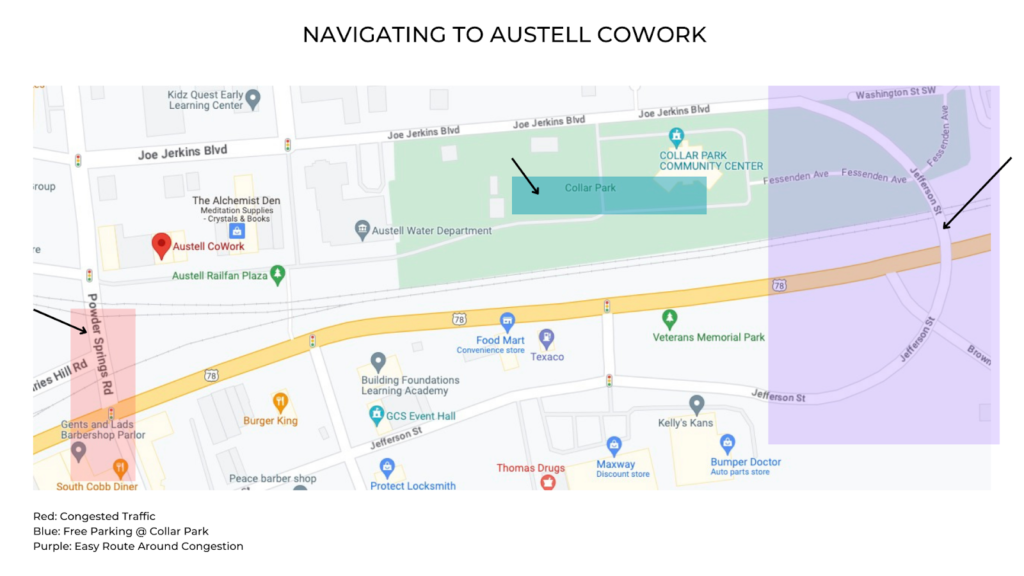
- Parking: Street parking on Broad Street & Mulberry Street or at Collar Park Community Center (end of Broad). Paid parking is also available at the Austell Parking Lot.
Train Route Tips
- Our campus is next to an active rail line. If a train holds you up, use Joe Jerkins Blvd (The Bridge) as an alternate route.
Amenities on Site
- Lockers & Showers: Available for active members.
- Bike & Walk-In: Feel free to bike or walk if you’re local.
🔑 Accessing the Space
Step 1: Setting Up Your Door Access Account
- You’ll receive an email from “Identity Enterprise.”
- Click the link found in the middle of the email, set a 12-character password ( you can quit when prompted for QR/2FA ).
- Once you enter your password and click through, your fob activates. The next screen asks you to scan a QR code. This step is not needed. You can quit the process after submitting the 12-character password.
- Schedule your onboarding appointment to pick up your key with Daniel (see your onboarding email for details).
Step 2: Optional: Setting Mobile Apps
We do not recommend relying on the optional apps: they don’t always work and sometimes you’ll get logged out due to token expiration. This can create problems for you at the door if you don’t have your physical blue fob. That said, “use the apps at your own risk.” Here are the download links and steps to setup below.
- Unifi Verify (2FA)
- Unifi Identity Enterprise (Door Access)
How to Log In On The Unifi Apps
- Step 1: Set up theVerify App: You need this set up so you can verify your identity once you try logging in. Log in using the email and password from the process above before moving to the next app.
- Step 2: Open the Identity App: paste ui-1866952701 into the Identity app’s address bar.
- Step 3 : Enter your login credentials (same as the other app!)
- Step 4 : Verify your login using the 2FA App (Verify)
- Step 5 : Once logged in, you can tap to open the door using the Identity App. Once you set up your accounts on these and you log in to both of these apps you’ve now installed, open “Identity Enterprise,” tap Doors , and select your entry point: Cowork Main (main space) or Cowork Offices (upstairs space).
- If you hit a snag, here’s my link to book an additional support appointment: https://calendar.app.google/C2yoMpNsPeNMXZsS9
What If I Get Locked Out?
Emergency Fobs:
If your misplace your fob or your backup smartphone app fails,
an emergency fob is available in the lockbox located on the
outside wall of Cowork near the emergency exit door (the
alleyway shared with Frog Rock Brewing Co).
We gave you the combination and a hint when we did your
onboarding session.
The hint reminder is “backwards.”
Still stuck? Text for the code to our private line
(Daniel’s number is 404-931-1320).
Please note: if you have a lock out situation between the
hours of 9pm and 7am, you probably won’t get a response.
Founders gotta sleep sometime!
Non-Residential Access Policy
- 24/7 Workspace Use: You may work any time, but sleeping on-site is prohibited.
- Shower Use: Clean up after yourself—do not leave towels or trash behind.
- Members found “residing” in the space will have access revoked.
Suite Address Options
- Mailboxes: Limited availability at $50/month .
- Business Address Use: You may not use our general address for mail.
- Add a Mailbox: Just email info@austellcowork.com to check availability and we’ll add this to your subscription if we have a box for you!
🖨️ Printing
Wi-Fi & Printer Access
-
Wi-Fi Network:
- SSID: Austell Cowork
-
Password:
cowork2760
-
Printer:
- Model: Sharp (IP Address: 192.168.1.220)
- Mac Driver: Download (macOS)
-
Windows Driver:
Download (Windows 64-bit)
-
Superior Support Contact for Help
- Chad Hale
- 678-622-8930
- chale@superiordocumentsolutions.com
Installing the Sharp Printer
Windows Users
Windows Driver:
Download (Windows 64-bit)
Windows Steps by Step
- Click the link to run the download then select the Printer Driver
- Click Download
- Click on the executive file you just downloaded then keep pressing next
- You will start downloading the driver
- After the driver is ready to install go to Standard Installation
- It will automatically find the printer.
- Choose the printer with an IP address assigned (192.168.1.220)
- If it doesn’t automatically find your printer you can choose enter manually and specify condition and then manually enter the IP Address.
- Enter the IP address: 192.168.1.220
- Make sure “Run the autoconfiguration is checked and click next”
- Click finish
- Go into Devices and Printers from your control panel (you can type “Printers and Scanners” or “Devices and Printers” into your search bar
- Right click the Sharp machine and go into Printing Preferences.
- Turn off double sided.
- Because you need a user code you will enter it under Job Handling and Authentication: 27605
Mac Users
Mac Driver
:
Download Mac Installer
Mac Step by Step
- Download Mac Drivers
- Open the files and run the pkg installer file.
- Go to System Preferences, then Printers & Scanners.
- Press the + button under the list of printers.
- Click on the IP button.
- Change the protocol to Line Printer Daemon (LPD). IPP will not work
- IP Address: 192.168.1.220
- Name: Anything you want
- Click next until it’s finished
Because you need a user code for printing you will need to
enter the code 27605 in Job Handling settings.
For Mac OS Sequoia 15, the steps are:
Click
Print
.
Click
Printer
.
Click
Job Handling
.
Click
Authentication
.
Click
User Number
.
Enter
27605
as the User Number.
Click
OK
.
Click
Print
.
Printer Usage & Rules
- Incidentals Only: No large, color jobs on code 27605.
-
Print Code 27605:
- 📄 Black-White Only (unlimited).
- 🚫 Any color sent to 27605 will automatically fail.
-
Color Prints by Request:
- Email membership@austellcowork.com to request a color-print code.
- Fees apply based on job size; we’ll provide exact pricing.
- Flash Drive Color Jobs under 27605 will also error—switch to B/W or request a color code.
Mobile Printing: Not supported; connect via laptop or flash drive only.
📽️ Projector Use
- Use the remote to turn on the projector (remotes are in the basket next to the orange couch)
- Navigate to “Apps”
- Tap any the screen share apps and follow on-screen instructions on your laptop or phone to share a screen.
- View a walkthrough tutorial here.
☕️ Coffee & Tea
What We Stock
- Dunkin Donuts Coffee
- Various teas – Green Tea, Black Tea & Earl Grey are the Staples
Brewing Instructions
BUNN Coffee Maker
- Plug in the brewer.
- Load the brew basket with 4 scoops (8 tablespoons total) of coffee grounds.
- Place the carafe (coffee pot) under the drip basket.
- Pour a pot of water into the machine’s back grate.
- Wait a few minutes—coffee will brew automatically.
- Discard spent grounds; enjoy!
Tea
- Boil water in the electric kettle at the best temperature for your tea (175 for green tea, 210 for black teas)
- Steep your tea to taste (3 minutes is great for green or black teas; herbal teas generally recommend 10)
📅 Reserve Spaces
Phone Booth & Meeting Rooms
- Upper Level Phone Booth & Main Building Meeting Areas must be reserved in advance .
- Booking: austellcowork.com/reserve » (takes ~20 seconds).
- No Drop-Ins: People rely on having these spaces available at their scheduled times.
🎉 Upcoming Events
Connect, Learn & Grow
Join us at Austell Cowork for community events, workshops, and networking opportunities. Meet local entrepreneurs, share ideas, learn something new, and build meaningful connections.
Check out what’s coming up and save your spot!
💳 Membership & Payments
Membership Dues Portal
-
No-Contract Service: You stay “in good standing”
by paying on time.
- 5 Days Late: Account becomes delinquent and our Stripe system stops attempting to charge you. We will reach out to you about updating your payment method via automated email or directly if we’re not getting a response from you.
- 10 Days Late: Membership may be canceled and access revoked after we’ve attempted to reconcile your membership payments.
- Update Card on File: Click to Update »
Cancelation Policy
- To cancel, email info@austellcowork.com .
- Upon cancellation, access terminates at the end of your current cycle and billing stops.
📜 Member & Facility Rules
Daily Desk Policy
- Desks are first come first served.
- Think of desks as gym equipment:
- After you finish for the day, leave your workspace clean and ready for the next user.
Austell Cowork Safety Policy & Surveillance
- We monitor via cloud cameras; the front door remains locked at all times.
- Do NOT open doors for non-members. We have a strict no solicitation policy and many of those who walk up are here to try and sell something.
-
Exceptions:
- On-duty uniformed mail/package couriers
- City of Austell employees
- First responders
- Staff (if present)
If no staff is around, call (404) 931-1320 before opening any door for someone you don’t recognize.
Non-Residential Use
- Access is 24/7 but not for living on-site.
- Overnight Sleeping is prohibited.
- Showers: Use them, but do not leave towels or trash behind.
Members found misusing Austell Cowork as a residence will lose access after an initial warning.
24/7 Building Access & Door Security
- Your membership does not grant the ability to let in others.
- Propped doors and holding doors for strangers create safety risks—do not do this.
Reporting Safety Issues
- If you see any problems (e.g., damaged equipment, spills, unauthorized people), please email info@austellcowork.com immediately.
Personal Relationships
- Workplace romance is allowed only if it remains professional and respectful.
- Any behavior that makes others feel unsafe or uncomfortable is strictly prohibited.
Prohibited Conduct
- No unwelcome advances, persistent flirtation, or inappropriate comments (verbal or electronic).
- Any form of harassment or intimidation will result in disciplinary action, up to membership termination.
Reporting & Enforcement
- If you experience or witness misconduct, email info@austellcowork.com .
- All reports are treated confidentially; appropriate action (verbal warning, suspension, termination) will be taken based on severity.